


Once you get your hands on some Polygon (MATIC), you’re going to need a crypto wallet in which to hold it. One such wallet is MetaMask, which is becoming a popular way to store digital assets. However, Polygon isn’t a part of the MetaMask wallet, so you’ll have to set it up manually.
Don’t worry though, we’re going to tell you how to add MATIC network to MetaMask wallet in the guide below. It will only take a few minutes.
1. Install MetaMask
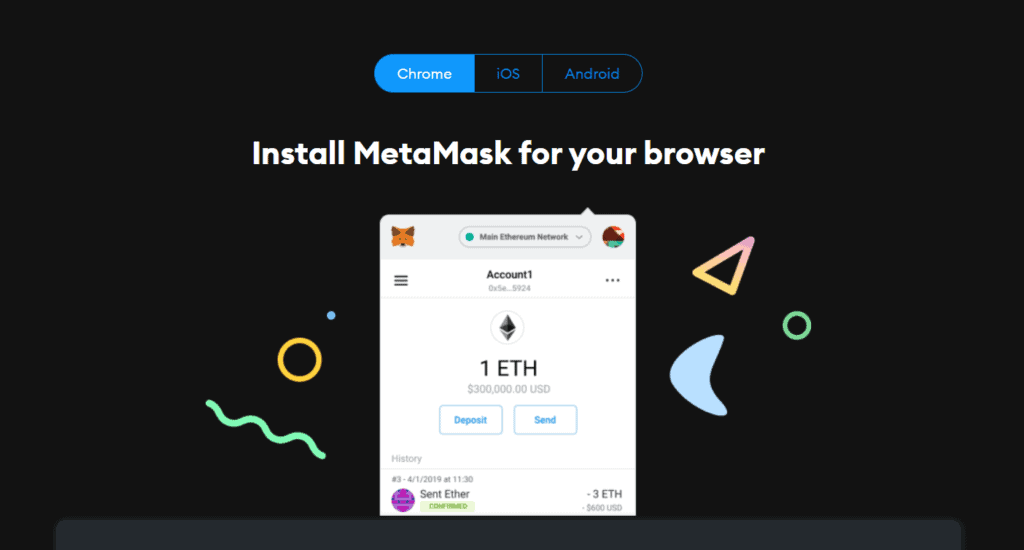
There are several ways you can download and install MetaMask. Most people prefer to use it in their browser, but the wallet is only supported through Chrome, Firefox, Brave, and Edge. However, you can also add it to your smartphone or tablet as Meta Mask supports both Android and iOS devices.
2. Setting Up Your Wallet
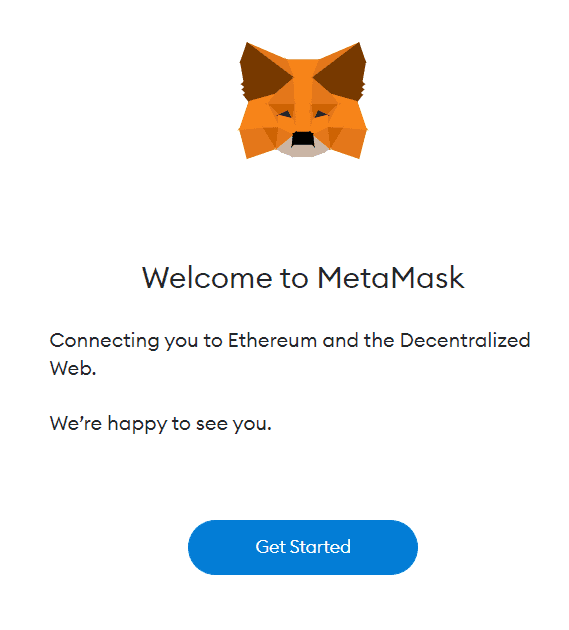
Once you’ve downloaded and installed the wallet, MetaMask will greet you with a welcome page. Here you can click the Get Started button to begin setting up your crypto wallet.
If you already have a MetaMask wallet, you can import it using your seed phrase. Just select the Import Wallet button. However, if you’re creating a new MetaMask wallet, you’ll choose Create a Wallet.
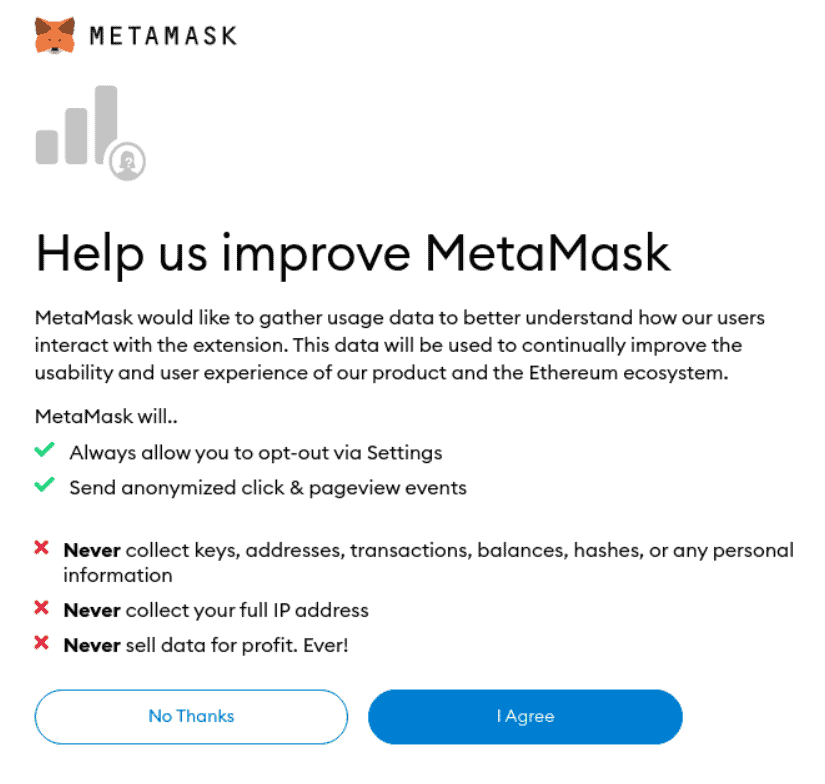
Before you import your wallet or set up a new one, MetaMask will ask if you want to share your anonymous data to help improve the wallet. You’ll see a list of information MetaMask will and will not collect. Choose whichever you prefer as refusing or accepting will not impact your Metamask experience.
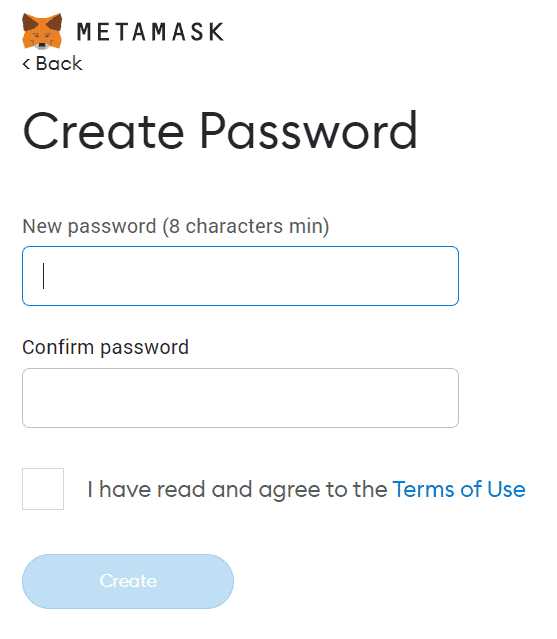
Next, you need to choose a password. This is the password you’ll use to login to MetaMask. Remember, this is not your seed phrase – you’ll get that in a moment. Your password is used to keep anyone from gaining access to your wallet. Keep your password in a safe place, but if you happen to lose it, you can recover it using your seed phrase.
Recovery phrase safety and importance
After you’ve set up your password, MetaMask will provide a video explaining the security of your seed phrase and why it’s important. Watch the entire video and read the pertinent information about how MetaMask keeps your funds safe through the use of a recovery phrase.
On the next screen, MetaMask will reveal your seed phrase to you. This is a list of words that you’ll need in the event you forget your password or need to set up your MetaMask wallet on another device. Click on the lock to reveal your words.

Keep this information private and never share it with anyone else. This list of 12 words is the final security measure for your wallet and funds. Once you have your recovery phrase safely saved, click on the Next button to continue to the next step.
Now you’ll have to prove that you actually saved your recovery phrase. MetaMask will ask you to enter the words in the correct order. When everything is entered correctly, click on the Confirm button.
That’s all there is to it. Your MetaMask wallet is now ready for you to deposit funds into it. Choose the All Done button to access your wallet. However, keep in mind that until you configure the wallet for other networks, the only coins and tokens you can add have to be Ethereum or Ethereum-based ERC20.
3. Add MATIC Network to MetaMask
Before you can send MATIC to your MetaMask wallet, you need to configure it to support Polygon. This requires additional network information to your wallet. The first thing you’ll need to do is open your MetaMask wallet and select the dropdown menu titled Network.
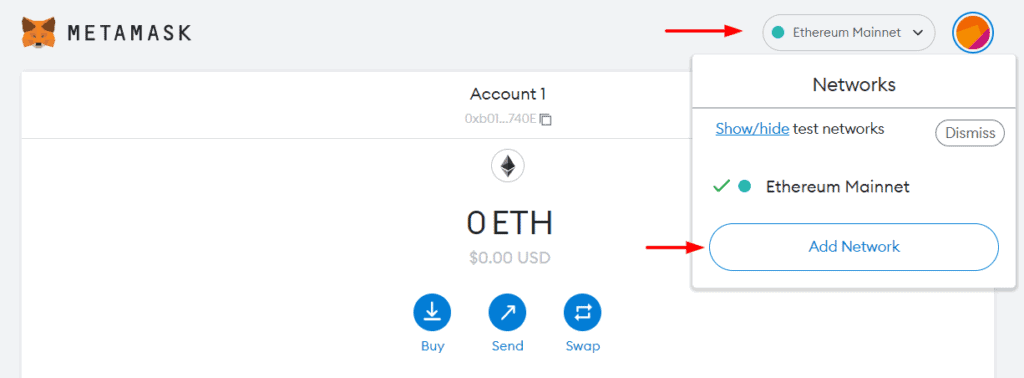
Select Add Network from the options that pop up. This is where you’re going to give MetaMask the information needed to add Polygon. Here’s the information you need to add:
- Network Name – Polygon
- New RPC URL – Enter any of the following:
- Chain ID – 137
- Currency Symbol – MATIC
- Block Explorer URL – https://polygonscan.com/
Click the Save button once you’ve entered everything and you’ll establish a connection to the Polygon network.
If you want to confirm that MATIC was added successfully, go into your wallet and look for the MATIC icon. You can also confirm by choosing the network selection dropdown and confirming Polygon Mainnet is listed.
Ready to Accept MATIC
That’s all there is to it! You can now send and receive MATIC tokens into your MetaMask wallet. You can also access and interact with any dApps available on the Polygon network. Or, if you prefer, you can swap tokens within the MetaMask wallet. It’s a nifty feature to have. No matter what you’re using it for, you can now send and receive Ethereum and Polygon tokens through your MetaMask wallet.